
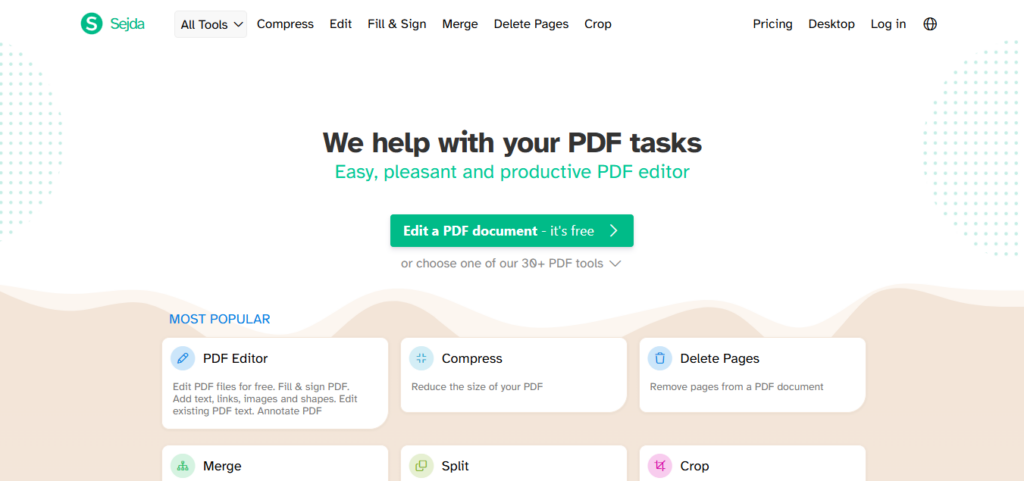
Sejda is a well-liked PDF editor that works in the browser and as a desktop app. It’s simple and covers the basics well. But many people eventually hit its walls: the free plan has page, hourly, and upload limits, and the paid plans are subscriptions. Others simply need something different, such as a one-time purchase, a mobile app, an offline tool, or deeper editing.
This guide covers ten alternatives, what each one does best, where each one falls short, and who should pick it.
Quick Picks
- Best completely free options: PDFgear and PDF24
- Best full-featured premium editor: Adobe Acrobat
- Best Acrobat alternative with a one-time purchase option: Foxit PDF Editor
- Best for quick browser tasks: Smallpdf and iLovePDF
- Best for Windows power users on a budget: PDF-XChange Editor
- Best for phones and tablets: Xodo
- Best no-install options: LibreOffice Draw (free, open source) and Apple Preview (built into Mac)
First, a Quick Look at Sejda
Knowing what Sejda offers makes it easier to judge the alternatives.
- Two versions. Sejda Web uploads your file to its servers for processing. Sejda Desktop is an app you install, and it works on files locally.
- Free plan. No sign-up is needed, but it applies page limits, hourly limits, limited uploads, and per-tool limits. Reviews and comparison sites quote different numbers (for example, three tasks per hour or per day, 50 MB, 200 pages), so check Sejda’s current limits before relying on any figure.
- Paid plans. Sejda’s pricing page lists a $5 Week Pass (one-time, seven days of web access), a $7.50 monthly web plan, and a $63 annual plan that adds the desktop app. Paid plans remove page and hourly limits, allow uploads up to 500 MB, and raise OCR to 100 pages.
If those limits or the subscription model don’t suit you, read on.
Comparison at a Glance
| Tool | Best for | Free option | Platforms | Paid pricing (approx.) |
|---|---|---|---|---|
| PDFgear | Free all-in-one editing | Yes, full-featured | Windows, Mac, iOS, Android, web | None currently |
| PDF24 | Free, no-limit tools | Yes, no stated limits | Web; Creator app for Windows | None |
| Adobe Acrobat | Professional workflows | Reader only | Desktop, web, mobile | Standard about $15/mo, Pro about $20/mo |
| Foxit PDF Editor | Acrobat-style editing for less | 14-day trial | Windows, Mac | $129.99/yr, or $209.99 one-time |
| Smallpdf | Quick online tasks | Yes, daily limits | Web | About $9–$10/mo annual, $15/mo monthly |
| iLovePDF | Merge, split, convert | Yes, with limits | Web, mobile, desktop | Premium, varies by plan |
| PDF-XChange Editor | Windows desktop editing | Yes, adds watermark on some features | Windows | Reviews list about $56 one-time |
| Xodo | Mobile and cross-device work | Yes | Web, iOS, Android, Windows | $9.99/mo billed annually |
| LibreOffice Draw | Free layout-level edits | Yes | Windows, Mac, Linux | Free |
| Apple Preview | Mac users | Built in | macOS | Free |
The 10 Best Sejda Alternatives
1. PDFgear:
PDFgear is a free PDF editor with apps for Windows, macOS, iOS, and Android, plus a web version. It covers editing, merging, splitting, converting, signing, annotating, and OCR, and it includes an AI assistant that can summarize a document or help with tasks using plain-language commands.
- Why consider it: No daily task limit, no ads, and text editing and OCR are available at no cost. The desktop and mobile apps work offline.
- Watch out for: It lacks some of the advanced tools of paid editors. The company has said in the past that premium features could be added later, so check its current terms.
- Best for: Anyone who wants Sejda-style editing without limits or a subscription.
2. PDF24:
PDF24 offers more than 25 free browser-based tools, including merge, split, compress, edit, sign, annotate, redact, OCR, and convert. The vendor states there are no artificial usage limits. If you prefer to work offline, PDF24 Creator brings the tools to your computer, though it only runs on Windows.
- Why consider it: Free for personal and commercial use, with no stated limits. The online tools work on any device with a browser.
- Watch out for: The web tools upload your file to PDF24’s servers (transfers are encrypted), and the site is ad-supported. The offline app is Windows-only.
- Best for: Occasional editors who want a big toolbox for free.
3. Adobe Acrobat:
Acrobat is the industry standard. Editing text and images, organizing pages, converting, signing, forms, and protection are all included, and higher tiers add AI features and collaboration. Adobe sells it by subscription, with current individual annual plans (billed monthly) listed at roughly $15 a month for Standard and $20 a month for Pro. A free trial is available, and the free Acrobat Reader handles viewing, basic annotations, and form filling.
- Why consider it: The most complete feature set, and files from other tools tend to open cleanly in it.
- Watch out for: It’s the most expensive option on this list and subscription-only.
- Best for: Professionals and teams who need dependable, full-featured editing.
4. Foxit PDF Editor:
Foxit PDF Editor offers full desktop editing, conversion, OCR, forms, and security. Foxit’s own pricing page lists $129.99 a year for PDF Editor and $159.99 a year for PDF Editor+, which adds mobile apps, eSign, and AI redaction. Unlike Adobe, Foxit also sells a one-time license (PDF Editor 14, listed at $209.99).
- Why consider it: Professional features at a lower price, with a no-subscription option.
- Watch out for: No permanent free plan, only a 14-day trial. The one-time license covers a specific version, not future upgrades.
- Best for: Freelancers and small businesses that want Acrobat-level editing for less.
5. Smallpdf:
Smallpdf is known for a clean, beginner-friendly interface. It handles compressing, converting, merging, splitting, signing, and basic editing in the browser. The free plan limits you to roughly two tasks a day, and reviewers note that editing existing text is a Pro feature. Pro is commonly listed at about $9–$10 a month billed annually, or $15 billed monthly.
- Why consider it: It’s simple and fast for one-off jobs.
- Watch out for: The free limit is stricter than Sejda’s, and the Pro price is higher than several alternatives here.
- Best for: People who value ease of use over price.
6. iLovePDF:
iLovePDF is a long-running set of web tools for merging, splitting, compressing, converting, rotating, and signing PDFs. Free use needs no registration, but there are file-size and usage limits. Reviewers report that editing existing content and some other tools are premium-only, and that the desktop app’s free version is limited. Paid plans are listed at about $5 a month billed annually and $9 a month billed monthly, but verify before buying.
- Why consider it: A wide range of everyday tools and a multilingual interface.
- Watch out for: Real text editing sits behind the paywall.
- Best for: Quick conversions and page management more than deep editing.
7. PDF-XChange Editor:
PDF-XChange Editor is a Windows-only editor with a dense, toolbar-heavy interface. According to the developer, more than 70% of its features need no license. The remaining features still work but add a watermark when used without one. Reviews have listed a perpetual license at around $56, with a higher tier adding fillable-form creation.
- Why consider it: Lots of free functionality, plus an inexpensive one-time license.
- Watch out for: It’s Windows-only, and the interface can feel crowded at first.
- Best for: Windows users who want a powerful offline editor on a budget.
8. Xodo:
Xodo is a PDF reader and editor with apps for iOS, Android, and Windows, plus a web version. The free version covers viewing, annotation, and basic edits, and reviewers praise it for handling large files and for being ad-free. Pro unlocks the full set of 30-plus tools, and Xodo lists it at $9.99 a month billed annually. The company says most tools process files on your device, and that tools needing an upload delete files after an hour.
- Why consider it: A comfortable mobile experience and cross-device syncing.
- Watch out for: Advanced editing needs Pro.
- Best for: Annotating, filling, and signing on a phone or tablet.
9. LibreOffice Draw:
LibreOffice is free, open-source office software. Its Draw module can open a PDF, letting you move elements, edit text blocks, and re-export the result as a PDF. It was never built as a dedicated PDF editor, so the import isn’t pixel-perfect: fonts, spacing, and layout can shift, and how well a file edits depends on the PDF.
- Why consider it: Free, no account, and it runs on Windows, Mac, and Linux.
- Watch out for: Complex or scanned PDFs often come out messy, and it isn’t suited to forms.
- Best for: Simple layout fixes on straightforward documents.
10. Apple Preview: Best Built-In Option for Mac
If you’re on a Mac, Preview is already installed. It can annotate, fill forms, add signatures, reorder or delete pages, and add password protection, all for free. It doesn’t edit existing text, so it won’t replace Sejda for rewriting a document’s contents.
- Why consider it: Zero cost, zero setup, and nothing leaves your computer.
- Watch out for: No true text editing, and Mac-only.
- Best for: Quick markups, signatures, and page management on a Mac.
How to Choose
- I want to edit text without paying: Try PDFgear first, then PDF24.
- I want one-time payment instead of a subscription: Look at Foxit’s perpetual license or PDF-XChange Editor.
- I work on a phone or tablet: Xodo or PDFgear.
- I only need to merge, split, or compress: PDF24, Smallpdf, or iLovePDF.
- I need a polished, enterprise-grade tool: Adobe Acrobat or Foxit.
- I’m on a Mac and just need to sign or mark up a file: Preview.
Privacy Tips for Online PDF Editors
Browser tools upload your file to someone else’s servers. Before you use one on a sensitive document:
- Read the tool’s file-retention policy. Some state that files are deleted within hours.
- Prefer offline apps (Sejda Desktop, PDFgear, PDF24 Creator, Preview) for contracts, tax forms, and IDs.
- Avoid sites that ask for unnecessary permissions or push you to install extras.